MOVATI App
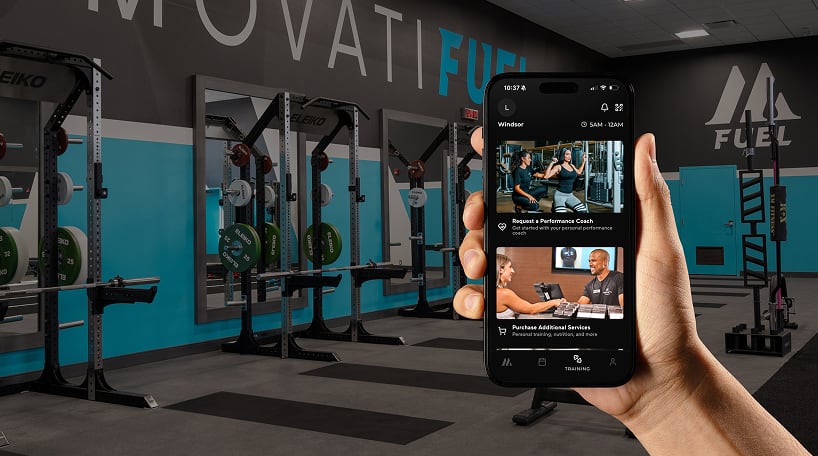
Maximize Your Membership Experience
Download the MOVATI Athletic App for access to:
- Club Check-in
- Fitness Class Schedules & Reserve a Spot
- Request a Trainer
- Purchase Personal & Small Group Training
- Earn badges by completing fitness challenges
- Club News, Notifications and Special Deals
- Your Membership Account Details

Key Features of the MOVATI App
Book Group Fitness Classes
Included in all memberships, MOVATI in-person group fitness classes are led by expert instructors in our purpose-built boutique studios. View class schedules and book a class, add it to your calendar, all with the ease and convenience of the MOVATI App.
Club Access and Membership
Your MOVATI App is your key card for entry into your favourite MOVATI club. Plus, view your check-in history and update your account profile with a few simple clicks.
Club Info and Services
Get club notifications, see operating & holiday hours, find MOVATI clubs nearest you, get club news and great deals, and even get additional services to guide you through tailored fitness solutions designed to meet your fitness goals with Performance Coach sessions, nutrition counselling and more.
Click the link to visit our website page that holds links and information to download the new MOVATI App.
All you need to login is an active, current membership and the following information:
- Your Home Club – in most cases, this will be the MOVATI location you originally signed up at. If you completed a Primary Club Transfer from the time you signed up, this transfer would change your Home Club location.
- Your Barcode – which can be found on your key tag, or by contacting your club. If you recently joined MOVATI, your barcode is most likely your phone number
- Your First Name – that is on file with MOVATI as written in your Membership Agreement
- Your Last Name – that is on file with MOVATI as written in your Membership Agreement
Once this information has been entered into the app and your membership is validated, you can then choose to receive a one-time code to be sent to your email or phone number on file. Select either email or phone and once you receive a code, enter it into the app and that’s it!
If you receive an error message after entering your membership information, and have checked that the membership information is correct, please contact support at movatiapp@movatiathletic.com or visit your club to ensure you have an email address and phone number on file.
In most cases, this will be the MOVATI location you originally signed up at. You can also access this information from the existing MOVATI App, by contacting a club you frequent, or submitting a support ticket to movatiapp@movatiathletic.com.
If your barcode contains % symbols, please do not use them when you enter your barcode number; remove them.
If your barcode starts with ‘MOV’ (e.g. MOV123456), please ensure you include ‘MOV’ when you enter your barcode
If your barcode does not start with ‘MOV’, please do not include it when entering your barcode.
If you are still having trouble, please contact support: movatiapp@movatiathletic.com.
Please check that you have correctly entered your information. In most cases, your Home Club will be the MOVATI location you originally signed up at. You can also access this information by contacting the club you frequent, or submitting a support ticket to movatiapp@movatiathletic.com.
If your barcode contains % symbols, please remove them. If your barcode starts with ‘MOV’ (e.g. MOV123456), please ensure you are including ‘MOV’ when you enter your barcode. If you are still having trouble, please contact support: movatiapp@movatiathletic.com.
In addition, you must have an active membership and be in good standing. Please check to ensure all the information is being entered correctly and without typos. If you continue experiencing login issues, please contact support: movatiapp@movatiathletic.com.
Select QR code in the top-right corner of the app screen; your member swipe QR code will pop up; Select History in the top-right corner. You will see a breakdown of your check-in count and individual swipes.
Check-in History Reports are available to send to your specified email address. You can choose from the following options:
- Week – will send last full week’s check-in history
- Month – will send last full month’s check-in history
- Year – will send last full year’s check-in history
- Custom – select specific date durations
- Recurring – Weekly, monthly, annually.
If the class reservations feature is not functioning within the MOVATI App, please ensure you have the latest app version installed on your device. If this doesn’t resolve the issue, please submit a support ticket to movatiapp@movatiathletic.com, category – ‘book a class’.
You can visit the Boutique Studios page to book a class as well
Call your club location if possible and report this issue to movatiapp@movatiathletic.com
Our Booking Windows for classes open 73 hours before the start time of the class. There is a convenient countdown timer above the BOOK CLASS button on the class booking screen that will show you when the booking window opens.
You are welcome to come to the club and see if any registered participants do not show up as there is a first come first serve policy 5 minutes prior to class start time. You can also consider trying a class/studio you’ve never tried before that has availability!
Sign Up Required classes/sessions require a fee to attend. To purchase sessions in your MOVATI App, Go to Profile > My Account > Sessions. Once purchased, you can then book sessions in the MOVATI Training App. For general questions and inquiries go to Workout > Request a Trainer or visit your club.
Yes, you will be able to book a class at the club locations your membership agreement provides access to.
Yes, your friend can book a class as a non-member if they have a guest pass. Visit our website group fitness schedule to book a class. Please visit the club 15-20 min before class to ensure proper guest access/waiver is assigned.
Choose Book a Class and use the ‘Filter’ feature to filter to the club location you’d like to visit/work out at. The schedule will accommodate your filtered criteria in relation to your membership agreement parameters. Please note our Booking Etiquette
Choose ‘Book a Class; and use the ‘Filter’ feature to filter to specific criteria and utilize the drop-down selections available under each criterion to customize your view of the schedule. Filters that are set will save until you change or reset them.
Select the Profile tab on the bottom navigation bar, select ‘Account Information’. Editable fields are white and non-editable fields are grey. Ensure to SAVE CHANGES and you will receive an email at the address on file confirming the change.
Select the Profile tab on the bottom navigation bar, select ‘Account Information’. Editable fields are white and non-editable fields are grey. Ensure to SAVE CHANGES and you will receive an email at the address on file confirming the change.
For security reasons, email and phone number changes can’t be made in the app. Please contact your home club to update this information in your member profile.
For security reasons, name changes are not available in the app. Please contact your home club with proof of your name change and your name change can be completed in-club.
Please contact your home club to ask about changes to your membership plan.
There are two ways to ‘Favourite’ a club location that is not your Home Club within the MOVATI App:
- From the Home Club tile, select ‘View/Change’; select ‘See Other Clubs/Change Favourite Club’. Click on the heart icon to ‘Favourite’ a club location that your membership type gives access to.
- From the Profile tab, select ‘Agreement Details’, select ‘Set Favourite Club’. Click on the heart icon to ‘Favourite’ a club location that your membership type gives you access to.
NOTE: App Users can only have one club location set as a ‘Favourite’ and once set, app functionality will switch to your ‘Favourite’ club location.
To ensure your MOVATI App has the most up to date information regarding your membership changes please log out and log back into your app for the changes to take effect.
If after logging back in the information is still incorrect, please submit a ticket to movatiapp@movatiathletic.com or contact your home club.
Select the Profile tab on the bottom navigation bar. In the grey circle near the top of the screen select the pencil icon. The app will ask if it can access your photo library or camera. If you select “yes” you can choose a photo from your device or take a photo with your device camera.
No, your profile picture is only on your device.
For privacy reasons, certain features of the app will not transfer over to another device.
At the bottom of the Profile page, there is a toggle switch for push notifications that you can toggle ON (green) or OFF (grey).
At the bottom of the Profile page, there is a toggle switch for push notifications that you can toggle ON (green) or OFF (grey). If that does not work, you may have to update your phone settings.
Android Instructions: https://support.google.com/android/answer/9079661?hl=en
iOS Instructions: https://support.apple.com/en-ca/108781#:~:text=Go%20to%20Settings%20and%20tap,in%20the%20scheduled%20notification%20summary.
You can submit feedback about your experience within the app.
If that doesn’t work, you can navigate to the section within the ‘Profile’ page of the MOVATI App, click on ‘Feedback and Support’. Click on ‘Club Feedback’. You can provide feedback on the club that is displayed (your Home or Favourite Club) or, select a different club from the list.
Select your star rating and then choose a category from the drop-down arrow if you’d like to highlight a specific category and/or provide a short comment with your rating. Your feedback will be directed to the Club you selected.
Click on the ‘Training tab’ on the bottom navigation bar, click on ‘Request a Performance Coach’ and select which ‘club location’ you’d like to train at (that your membership agreement allows access to), what you’re ‘Interested In’ in the drop-down menu, and include a brief description of your training goals. Once submitted, you should receive an email from a Performance Coach within 48-72 hours.
You can purchase most Training Services in the MOVATI App, but 1-on-1 training is currently not available to purchase via the MOVATI App. Group Personal Training, Pilates Reformer, and other specialty services are available via the App. To purchase these services, click on the ‘Training tab’ on the bottom navigation bar, click on ‘Purchase Training Services.’
To purchase 1-on-1 Training with a Performance Coach, click on the Training tab on the bottom navigation bar, click on ‘Request a Performance Coach’ and select which club location you’d like to train at (that your membership agreement allows access to). From there, select what you’re ‘Interested In’ in the drop-down menu, and include a brief description of your training goals. Once submitted, you should receive an email from a Performance Coach within 48-72 hours. Alternatively, you can request a Performance Coach the next time you are in your club.
Yes, you can connect to your Personal Training App through the MOVATI App; through the ‘Training’ tab on the bottom navigation bar; click ‘Personal Training App’. This will take you out of the MOVATI App and prompt you to log in to the Personal Training App. Ensure you remember your username and password to log in successfully.
Bring the deal/promo you saw at the front desk or Cafe for redemption. If the deal is an external deal/promo, show the promo on your MOVATI App for redemption at that vendor’s Point of Sale.
We are evaluating features, requests, and engagement levels within the app and sometimes will add or remove features in response. If a certain feature is no longer available, it is most likely due to a lack of usage across all our clubs. You can look forward to new features being added to the App in future to enhance your MOVATI experience.
The new MOVATI App Supports iOS15.1+ and Android 7+. If you have models before these, you can utilize our website to book reservations.